
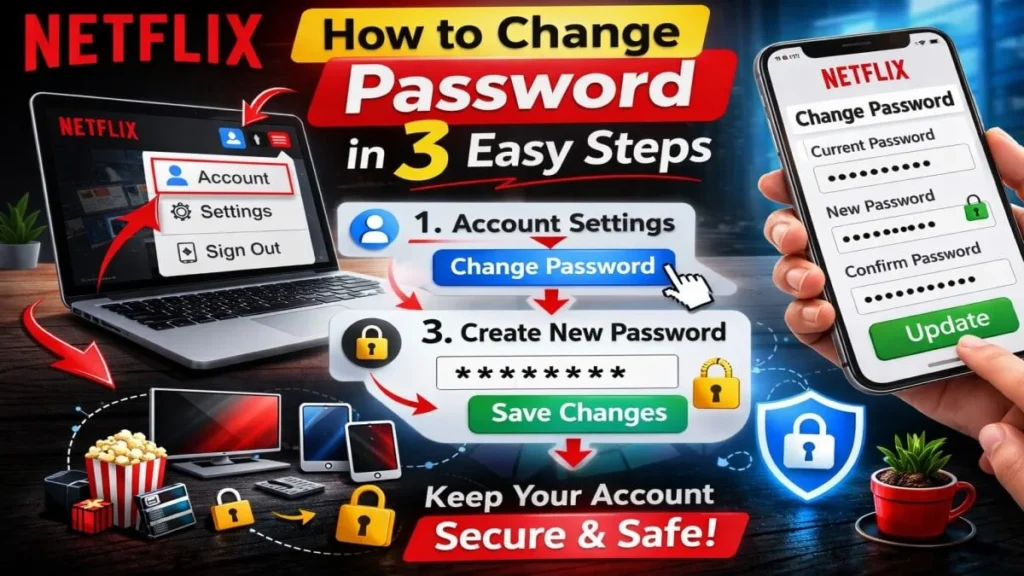
Learn how to change Netflix password in 3 easy steps. Step-by-step guide for desktop & mobile, reset via email/SMS, security tips, and sign out of all devices.
Is someone else using your Netflix account? Are you seeing shows you’ve never watched in “Continue Watching”? If this is happening, then your password may not be secure. Hacking of OTT accounts has become common these days, especially when the password is shared with multiple people or hasn’t been changed for a long time. If you want to learn How to Change Netflix Password in a very easy and secure way, this guide will give you complete satisfaction in just 3 steps. So, let’s get your Netflix account secure again in a few minutes.
Table of Contents
1. Introduction
In today’s digital age, a large part of our entertainment depends on OTT platforms like Netflix. But often we use the same password in many places, share it with friends, or don’t change it for a long time. Therefore, changing your password from time to time is very important to keep your Netflix account secure.
These days, millions of people watch content on Netflix, Jiohotstar and other OTT platforms. If you want to know if Jiohotstar is really free for Jio users, then be sure to read our detailed guide.
Why is it important to change your Netflix password?
- To increase the security of your account
- To prevent unknown logins or hacking
- To keep personal information and payment details safe
- To stop unauthorized use
Common reasons for changing passwords
- Security Breach – Risk of suspicious logins or hacking
- Password Sharing – Misuse due to sharing passwords with too many people
- Forgot Password – Forgetting your password
- Security changes after using public Wi-Fi
What will you learn in this guide?
In this article, we will understand How to Change Netflix Password in 3 Easy Steps in very simple language. We will also get detailed information about how to change the password on mobile and laptop, what to do if you forget your password, and how to keep your account more secure.
So, let’s take a look at the easy way to change your Netflix password.
2. When to change Netflix password?
Setting a password just once is not enough to keep your Netflix account secure. In certain situations, you need to change your password immediately. You should definitely change your Netflix password in the following situations
1) Suspicious Login Activity
- If you receive a notification that your account has been logged in from an unknown device or location
- If a series/movie you haven’t watched appears in “Continue Watching”
- If you receive a security alert email from Netflix
- In such cases, it is necessary to change your password immediately and sign out of all devices.
2) Too Many Devices Connected
- If you are using more screens than your plan
- If an unrecognized TV, mobile or laptop appears in the login
- If you repeatedly receive the message “Too many people are using your account”
This indicates that your password may have reached others.
3) Shared Password Misuse
- If a password given to a friend or relative is given to others without their knowledge
- If you see changes in your profile settings
- If your recommendations have completely changed
Password sharing can make your account vulnerable, so it’s a good idea to update your password regularly.
4) After Using Public Wi-Fi
- If you log in to a cafe, hotel, airport, or college Wi-Fi
- If you suspect that the network is not secure
- There is a high risk of data being hacked on public Wi-Fi. Therefore, it is a good habit to change your password after logging in to such a network.
In short, the safest solution is to change your password immediately if you notice any suspicious activity related to your Netflix account.
3. How to Change Netflix Password in 3 Easy Steps
Changing your Netflix password is very easy. You can update your password in a few minutes by following the 3 steps given below.
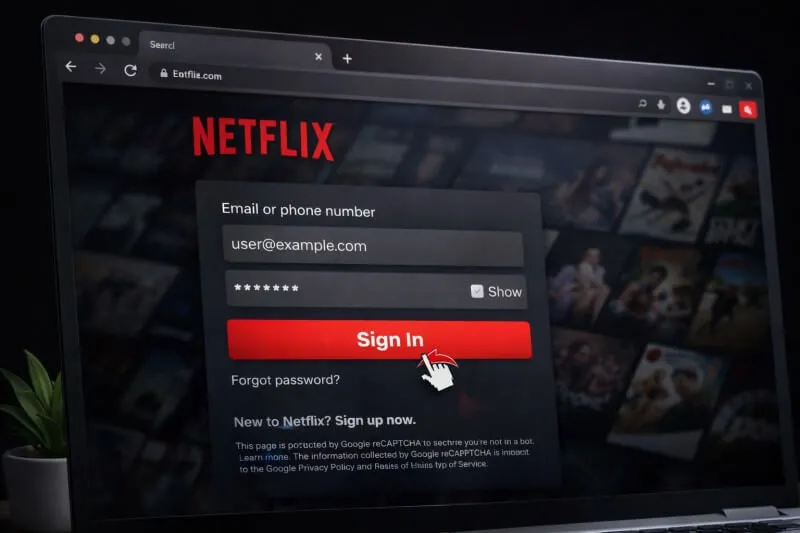
Step 1: Log In to Your Netflix Account
- Open Netflix’s official website or mobile app.
- Enter your current Email/Phone and Password.
- Click Sign In.
What to do if you forgot your password?
- Click on “Forgot Password?” on the Login page.
- Get the Reset link via Email or SMS.
- Set a new password and log in again.
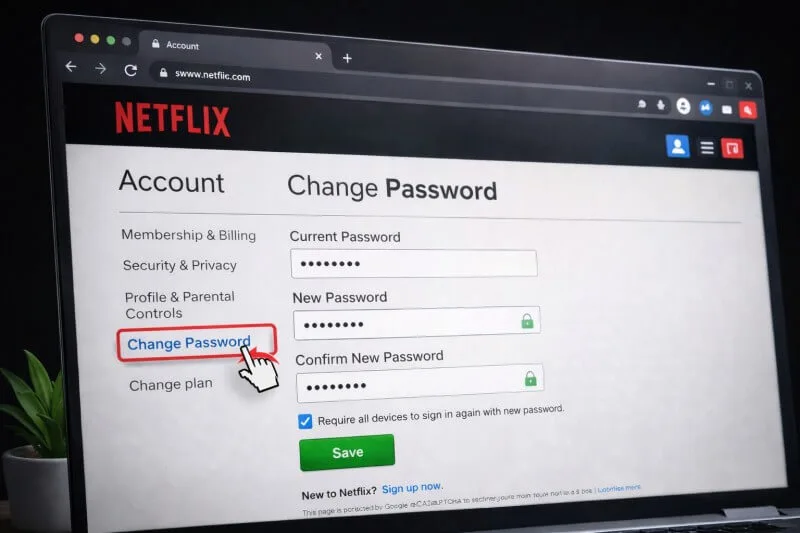
Step 2: Go to Account Settings
- Click on the Profile Icon in the top right corner of the screen.
- Select “Account” from the dropdown.
- Click on the “Change Password” option on the Account page.
- Here you will be asked to enter your current password.
Step 3: Enter New Password & Save Changes
Create a strong new password.
- Use uppercase and lowercase letters
- Add numbers and special symbols (@, #, $, etc.)
- Keep it at least 8–12 characters
- Reconfirm the new password.
- Select the option “Sign out of all devices” (for added security).
- Finally, click Save.
Your Netflix password has now been successfully changed!
4. How to Change Netflix Password on Mobile (Android & iPhone)
Nowadays, most people use Netflix on mobile. So, how to change Netflix password on Android or iPhone? This question is asked by many. Below, you have been given simple step-by-step information about both the App and Browser methods.
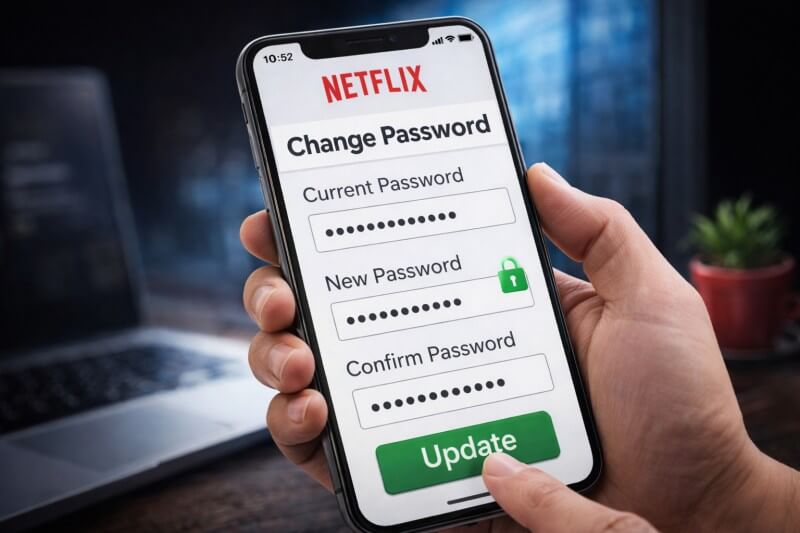
Method 1: How to change the password from the Netflix App?
The option to change password directly from Netflix’s mobile app sometimes redirects to the Account Settings page. Follow the steps below:
Step 1: Open the Netflix App
- Open the Netflix App on your Android or iPhone.
- Log in to your profile.
Step 2: Tap on the Profile Icon
- Select the Profile Icon in the top right corner of the screen.
- Scroll down and tap on the “Account” option.
- (Note: This option may open in a browser.)
Step 3: Select Change Password
- Click on “Change Password” on the Account page.
- Enter the current password.
- Enter a new strong password and confirm.
- Selecting the “Sign out of all devices” option provides more security.
- Finally, Save.
✔ Your Netflix password has been successfully updated.
Method 2: Change Password Method from Mobile Browser
If the direct option from the App is not visible, the Browser method is the most reliable.
Step 1: Open a Browser
- Open Chrome, Safari or any Browser.
- Visit the official Netflix website.
- Log in to your account.
Step 2: Go to Account Settings
- Tap on the Profile Icon at the top.
- Select the Account option.
Step 3: Change Password
- Select “Change Password”.
- Enter the current password.
- Create a new strong password.
- Confirm and Save.
App vs Browser Method – Which Method is Better?
- Feature App Method Browser Method
- Easy to Use ✔ ✔
- Direct Account Access Sometimes Redirect ✔ Full Access
- All Settings Visible Limited ✔ Full
- Security ✔ ✔
Recommendation: If Account Settings are not fully visible from the App, then using the Browser Method is more appropriate.
Additional Security Tip
After changing your password on mobile:
- Sign out of all devices
- Use a strong and unique password
- Consider using a Password Manager
This way you can easily and securely change your Netflix password on both Android and iPhone.
5. What to Do If You Forgot Your Netflix Password
Forgetting your password is a very common thing when using Netflix. Don’t panic — Netflix has easy and secure ways to reset your password. Below is information on how to reset via email and SMS.
1) Reset via Email
This is the most common and easiest method.
Step 1: Go to the Login page
- Open the Netflix website or app.
- Click on “Forgot Password?”
Step 2: Select Email
- Select the “Email” option.
- Enter the Email ID associated with your Netflix account.
- Click on Email Me.
Step 3: Use the Reset Link
You will receive a Reset link from Netflix in your Email Inbox.
- Click on that link.
- Set a new strong password.
- Confirm and Save.
- ✔ You can now login with the new password.
2) Reset via SMS
If you do not have email access, you can use the SMS method (if your mobile number is linked to the account).
Step 1: Click on “Forgot Password?”
Go to the Password Help section from the login page.
Step 2: Select the SMS option
- Select the “Text Me” or “SMS” option.
- Enter your registered mobile number.
Step 3: Enter the Verification Code
- An OTP/Verification Code will be sent to your mobile.
- Enter that code.
- Set a new password and save it.
- ✔ This way, you can also reset your password via SMS.
Troubleshooting Tips (What to do if you encounter a problem?)
1. Not receiving the reset email?
- Check the Spam/Junk folder.
- Check if the correct email ID has been entered.
2. Has the mobile number changed?
If you do not have access to the old number, use the Email method.
3. Can’t find the account?
- Try using a different Email ID.
- Contact Support through the Netflix Help Center.
4. Reset Link Expired?
Start the “Forgot Password?” process again.
Important Note
- When setting a new password:
- Keep it at least 8–12 characters
- Use upper/lower case letters, numbers, and symbols
- Don’t use the same password as other websites
Even if you forget your password, you can safely access your Netflix account again in minutes.
6. How to Sign Out of All Devices After Changing Password
1. Why This Is Important
It is very important to sign out of all devices after changing your password. Because if someone is already logged into your account, their access can sometimes remain active even after just changing the password.
This can lead to unauthorized use, profile changes, or incorrect recommendations.
“Sign out of all devices” makes your account completely secure.
This process puts your Netflix account back under your full control.
2. Step-by-Step Process
- First, log in to the Netflix website and click on the Profile Icon at the top. Then select the Account option.
- After scrolling down on the Account page, you will see the “Sign out of all devices” option. Click on it.
- Select “Sign Out” again to confirm.
In a few minutes, your account will be logged out from all mobiles, TVs, laptops, and other devices.
3. Security Benefits
- This process completely stops unauthorized use of your account.
- Any old or unrecognized device is automatically logged out.
- Your personal information and payment details are more securely protected.
- This reduces the risk of future hacking and keeps your Netflix experience safe and secure.
7. Tips to Create a Strong Netflix Password
Creating a strong password is very important to keep your Netflix account secure. Many people use simple and easy-to-remember passwords, but this increases the risk of hacking. Below are some important tips to create a strong Netflix password.
1) Use Uppercase, Lowercase, Numbers, and Symbols
When creating a strong password, use a combination of uppercase letters (A–Z), lowercase letters (a–z), numbers (0–9), and special symbols (@, #, $, %, &).
For example, instead of just netflix123, using a combination like N3tFl!x@2026 makes the password more secure.
It is advisable to keep a password of at least 8 to 12 characters.
Such a password is difficult for hackers to guess or crack.
2) Avoid Common Passwords
Do not use common passwords like 123456, password, abcd1234, india123 at all.
Personal information such as your name, date of birth, or mobile number should also be avoided in passwords.
These passwords are easily recognizable and increase the risk of hacking.
Using a different password for each website is a safe habit.
3) Use a Password Manager
If you find it difficult to remember different strong passwords, using a Password Manager is a great option.
These apps store your passwords securely and offer auto-fill facilities.
This makes it easy to use a different and complex password for each account.
Using a Password Manager strengthens the security of your Netflix account.
Remember, a strong password is the first and most important step in securing your Netflix account.
8. Common Problems & Fixes
Some common problems may occur while changing or resetting your Netflix password. Below are some of the major problems and their easy solutions.
1) Reset Email Not Received
- If you do not receive the Reset Email after clicking “Forgot Password”, first check your Spam or Junk Folder. Many times the email goes there.
- Also make sure that you have entered the correct Email ID. If you type it incorrectly, the email will not arrive.
- Sometimes, it may take 5–10 minutes for the email to arrive due to server delays, so wait for a while.
- If you still do not receive the email, start the Reset process again or try using a different registered email.
2) Error occurs while changing the password
- You may see an error like “Incorrect Current Password” or “Something went wrong” while changing the password.
- In such a case, check if the current password is entered correctly (check if Caps Lock is not on).
- Make sure that the new password is as per Netflix’s rules (at least 8 characters).
- If the problem persists, try changing the browser or updating the app and try again.
3) Recovery Steps if Account Hacked
- If you see unusual activity on your account or if your email/password has been changed, reset it immediately using “Forgot Password?”.
- If you are unable to log in, contact Support through the Netflix Help Center.
- After changing your password, “Sign out of all devices” so that all unfamiliar devices are logged out.
- Using a strong and unique password is very important for future security.
With the right solutions, you can re-secure your Netflix account in a matter of minutes.
9. Conclusion
Changing your Netflix password is a simple process that takes just a few minutes. The 3 Easy Steps you have seen are –
- Log in to your account,
- Go to Account Settings and select “Change Password”,
- Set a new strong password and save the changes.
Following these three steps will keep your account more secure and reduce the risk of unauthorized use.
Always remember – your password is the first line of defense for the security of your Netflix account. Change your password immediately if you notice suspicious activity, after using Public Wi-Fi, or if your password has been shared with too many people. If possible, ensure complete security by using the “Sign out of all devices” option.
Make it a habit to update your password regularly (every 3–6 months). Use strong and unique passwords, and consider a Password Manager.
By adopting the right security practices, you can keep your Netflix experience safe, private, and secure.
10. FAQs (Frequently Asked Questions)
1) How often should I change my Netflix password?
For security reasons, it is a good idea to change your Netflix password every 3 to 6 months.
If you notice suspicious logins, unknown activity, or password sharing, change your password immediately.
It is a safe habit to update your password even after using public Wi-Fi.
Changing your password regularly keeps your account more secure.
2) Can I change Netflix password without current password?
Yes, you can change your password even without using your current password.
You can get a reset link via email or SMS by selecting the “Forgot Password?” option on the login page.
After completing verification, you can set a new password.
This method is especially useful if you have forgotten your password.
3) Does changing password log everyone out?
Changing your password alone does not log out all devices immediately.
For complete security, it is necessary to select the “Sign out of all devices” option when changing your password.
Selecting this option logs out your account from all mobiles, TVs and laptops.
This completely stops unauthorized use.
4) How many devices can use Netflix at once?
This depends on your Netflix plan.
Depending on the Basic, Standard and Premium plans, you can stream on 1, 2 or 4 screens at a time.
If more people are using it at the same time, you may get a message saying “Too many people are using your account”.
Therefore, it is advisable to avoid sharing passwords for safe and proper use.
From these FAQs, you may have got important questions related to Netflix password and their clear answers.

Hi, I’m Abhijeet Bendale — founder of OfferDukan.com.
I am sharing informative lifestyle guides, smart buying tips, and honest product research across Beauty, Tech, Health, Travel, and more. My aim is to help readers find genuine offers, smart shopping tips, and useful product insights that make daily life easier and more affordable.
Thank you for supporting OfferDukan.com!