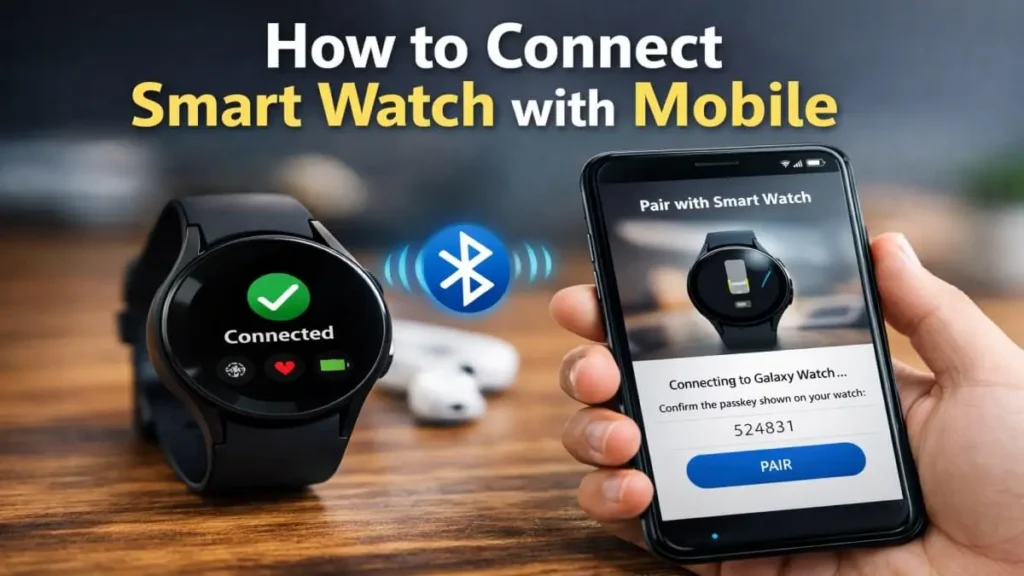
Learn how to connect smart watch with mobile in 9 easy steps. Complete guide for Bluetooth pairing, app setup, and troubleshooting tips.
Smartwatch is not a luxury these days but a daily need. Calls, notifications, fitness tracking, sleep monitoring — everything is at your fingertips. But many people face a basic problem: how to connect smart watch with mobile
- In this complete guide, we will see the step-by-step process. We will also understand:
- how to connect smart watch with mobile app
- how to connect smart watch with mobile bluetooth
- How to pair Android and iPhone
- Common problems and their solutions
Let’s get started
Table of Contents
Why You Need to Connect Smart Watch with Mobile?
When you connect your smartwatch to your mobile, you get the following benefits:
- Call notifications
- WhatsApp & SMS alerts
- Heart rate monitoring
- Step tracking
- Sleep tracking
- Music control
A smartwatch does not provide full features without connecting to a mobile.
Things You Need Before Connecting
Before connecting your smartwatch, have the following things ready:
- Fully charged smartwatch
- Internet connection
- Bluetooth ON
- Compatible mobile phone
- Official smart watch mobile app
This is where most people make a mistake — doing direct Bluetooth pairing without installing the app.
If you want to understand how to connect smart watch with mobile app, then follow the steps below carefully.
How to Connect Smart Watch with Mobile in 9 Easy Steps
Connecting a smartwatch to your mobile is a simple process but due to some incorrect setup, we all face difficulties in connecting it. If you are using an Android phone or an iPhone, then by following the 9 simple steps given below, you can easily connect your mobile to your smartwatch without any difficulty. Let’s see what are the 9 simple steps.
Step 1 – Turn On Your Smartwatch
Press and hold the power button on the side of your Smartwatch for 2–3 seconds then turn the device ON. The watch will fully start after the brand logo appears on the screen. If the watch does not turn on, then first check if it is at least 30% charged. Also, some smartwatches also show language selection and basic setup options for the initial first time setup, so complete them before proceeding to the next step. And check carefully
Step 2 – Enable Bluetooth on Mobile
Open Settings on your mobile and find the Bluetooth option. Turn Bluetooth ON and make sure that device visibility is enabled. If Bluetooth is OFF, the smartwatch pairing process will not start.
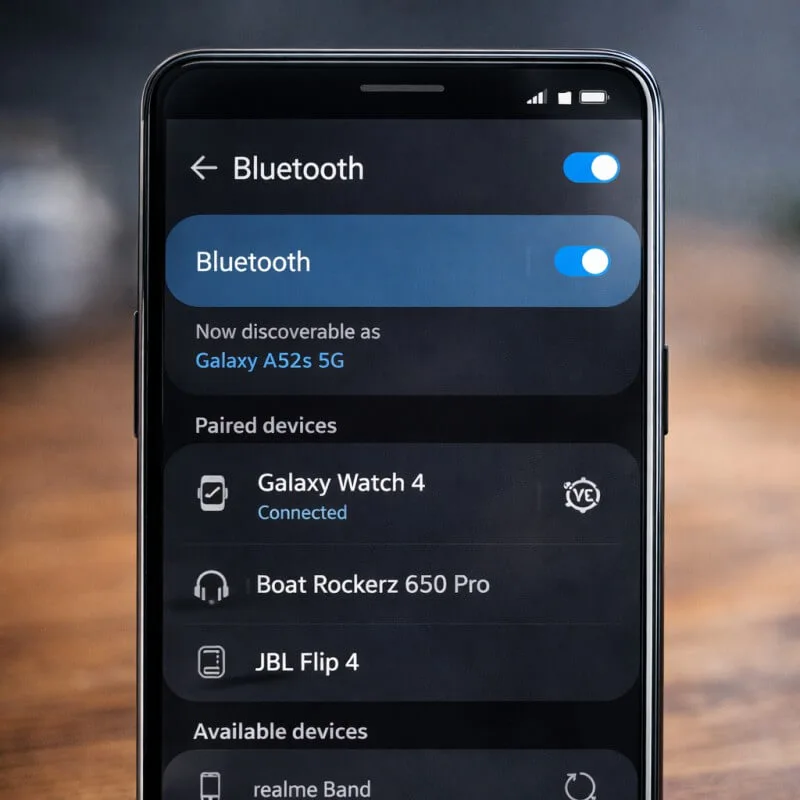
Many people ask how to connect smart watch with mobile bluetooth — the answer is that without a proper Bluetooth connection, data sync, notifications and calls between smartwatch and mobile do not work properly. So the important thing is to keep both the devices close to each other (within 1–2 meters) while pairing.
Step 3 – Install the Official Smart Watch Mobile App
To connect your smartwatch properly, you need to install the official mobile app. Open the Play Store (Android) or App Store (iPhone) on your mobile and search for the official app of your watch brand and download it. Do not install unofficial or duplicate apps, as this can cause pairing issues or data sync problems.
For example:
- Samsung – Galaxy Wearable App
- Apple – Apple Watch App
- Xiaomi – Mi Fitness App
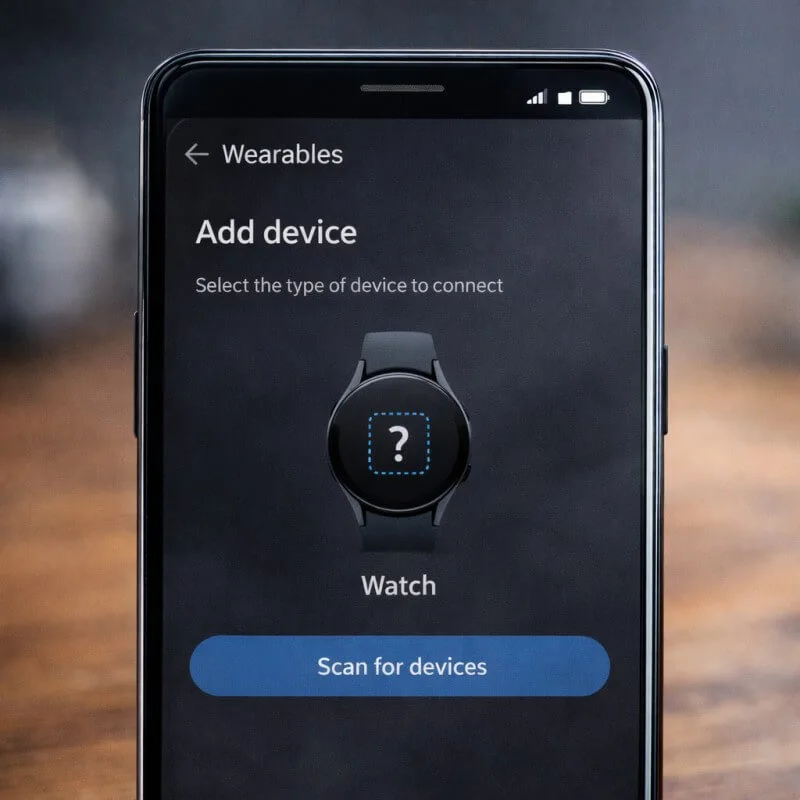
After installing the app, open it and allow Bluetooth permission, notification access and location access. This step is the answer to the question that people ask, how to connect smart watch with mobile app.
Without the right app, the advanced features of a smartwatch like call alerts, health tracking and sync updates do not work properly.
Step 4 – Open the App & Create Account
After the app is successfully installed, open it. If you are using it for the first time, you will see an option to Sign Up or Create Account. If you already have an account, log in directly. Most smartwatch apps offer the option to create an account via email, mobile number or Google/Apple ID.
The main purpose of creating an account is to securely store your fitness data, health records, steps count, sleep history and device settings. After logging in, the app will ask you for some basic permissions such as Bluetooth access, notification access, contacts access and location permission. It is necessary to allow these permissions, because without them, the smartwatch will not be able to receive calls, messages and app notifications.
Some apps ask you to set up a profile such as age, weight, height and gender. This information is useful for improving health tracking accuracy. After filling all the details, the app will show you the option to “Add Device” or “Pair New Device”, which is necessary for the next step.
After completing this step, your smartwatch is completely ready to connect to your mobile.
Step 5 – Tap on “Add Device” or “Pair Device”
After logging into the app, you will see an option on the home screen called “Add Device”, “Pair Device” or “+” icon. Tap on it. After selecting this option, the app will automatically search for nearby smart devices.
Make sure your smartwatch is ON and Bluetooth is enabled while the device search is on. Sometimes it may take 10–30 seconds for the app to detect the device, so don’t rush. If it doesn’t appear in the watch list, use the “Refresh” or “Scan Again” option.
This step is an important step in the pairing process, as this is where the mobile and smartwatch start recognizing each other. Choosing the right device name is very important — especially if there are other Bluetooth devices nearby.
After the device is successfully detected, you will be asked to confirm the pairing in the next step.
Step 6 – Select Your Smartwatch Name
Once the device search is complete, a list of available devices will appear on your mobile screen. The name of your smartwatch will appear in this list. This name is usually similar to the brand or model number (e.g. Watch X Pro, Galaxy Watch 6, etc.). Identify the correct device and tap on it.
If there are multiple Bluetooth devices nearby, be careful not to select the wrong device. Keeping your smartwatch screen ON makes it easier to identify the device. Sometimes a pairing request notification also appears on the watch.
Once the correct smartwatch name is selected, the process of establishing a connection between the mobile and the watch begins. At this point, both devices start communicating securely with each other. If the smartwatch does not appear in the device list, turn Bluetooth OFF and ON again or restart the app.
After successfully selecting the device, you will have to confirm the pairing code in the next step.
Step 7 – Confirm Pairing Code
After selecting the smartwatch name, a pairing code or number will appear on both the mobile screen and the smartwatch screen. Carefully check if this code is the same on both the devices. If the code matches, tap the “Pair”, “Confirm” or “Allow” option on the mobile.
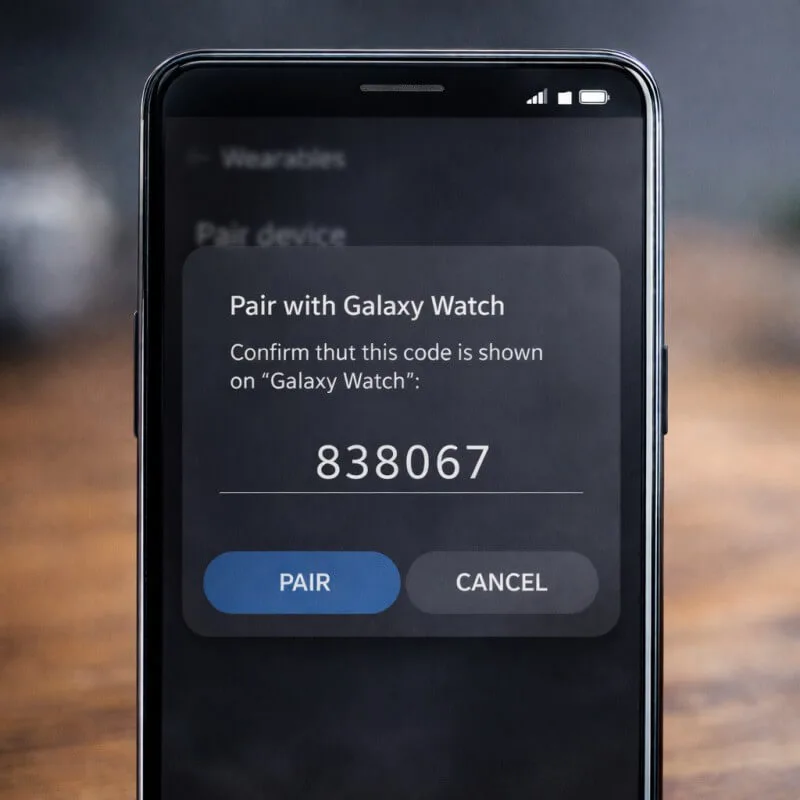
This security step is very important because it ensures that your mobile and smartwatch are securely connected to each other. If you see an incorrect code, cancel the pairing and start the process again. Be especially careful when pairing in public places, as there may be other Bluetooth devices nearby.
After confirming the code, the primary connection between the devices is established. Sometimes the system may ask for additional permissions — allowing them will make the sync process smoother. Once the pairing is complete, a message like “Connected” or “Successfully Paired” will appear on the smartwatch.
Now in the next step, we will enable the necessary permissions, which are required for full functionality.
Step 8 – Allow Necessary Permissions
After confirming the pairing code, the app will ask you to allow some important permissions. These usually include Notifications access, Contacts access, Call logs, Location, and sometimes SMS permission.
Enabling these permissions is essential, because without them, the smartwatch will not be able to receive calls, WhatsApp messages, SMS alerts, or app notifications. For example, if notification permission is not granted, even if you receive a message on your mobile, the alert will not appear on your watch.
On Android devices, you will see an option like “Allow” or “Grant Permission”. On iPhone, you have to manually enable some permissions by going to Settings → Bluetooth or Settings → App Name.
Consider privacy issues while allowing permissions. Only grant all permissions after making sure that it is an official app. Once all permissions are properly enabled, the smartwatch is ready to fully sync with the mobile.
Now in the final step, we are going to complete the sync process.
Step 9 – Complete Sync Process
After allowing all permissions, the data syncing process between the app and smartwatch begins. At this point, fitness data, time settings, notification preferences, and basic configurations are automatically transferred. This process usually takes 1–3 minutes.
While syncing is in progress, keep your mobile and smartwatch close to each other and make sure that the Bluetooth connection is stable. If there is a delay in syncing, close the app and open it again or refresh it by turning Bluetooth OFF/ON.
After the sync is complete, you will see a “Connected”, “Sync Completed” or similar message on your smartwatch. Now you can receive calls, see WhatsApp alerts, track steps, and use health monitoring features.
After this step, your smartwatch is fully connected to your mobile and all features are activated. 🎉
Final Tip
If you encounter connection problems in the future:
- Restart the watch
- Reset Bluetooth
- Check for app updates
Now you have fully understood how to connect smart watch with mobile in a step-by-step manner.
Common Problems & Solutions
Some common problems may occur while connecting a smartwatch. Below are the most common issues and their practical solutions.
1. Smartwatch Not Connecting
Sometimes the pairing process does not complete or the smartwatch does not connect to the mobile.
Possible Solutions:
- Restart both devices – Restarting the smartwatch and the mobile will resolve temporary glitches.
- Turn Bluetooth OFF and ON again – Connection refreshes.
- Update the official app – Outdated apps can cause compatibility issues.
- Check the watch battery – Pairing may fail if the battery is low.
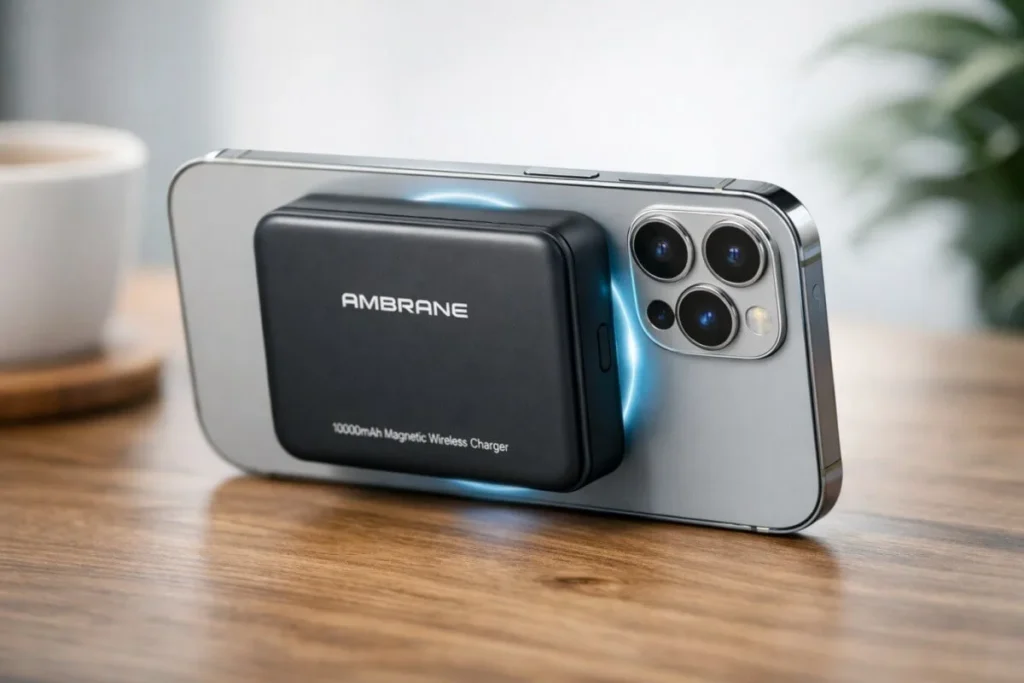
Sometimes connection issues happen due to low battery. Using a reliable power backup device can help avoid such interruptions. You can check our detailed review of the Ambrane MagSafe Power Bank – 10,000mAh Smart & Powerful Charging for uninterrupted charging support.
2. Bluetooth Not Showing Device
If the smartwatch name is not visible in the Bluetooth list, follow these steps:
- Reset the smartwatch – Use the Settings → Reset option (if available).
- Restart the mobile – System refreshes.
- Keep the devices close together – 1–2 meters is best.
- Check Bluetooth visibility – In some watches, pairing mode may need to be enabled manually.
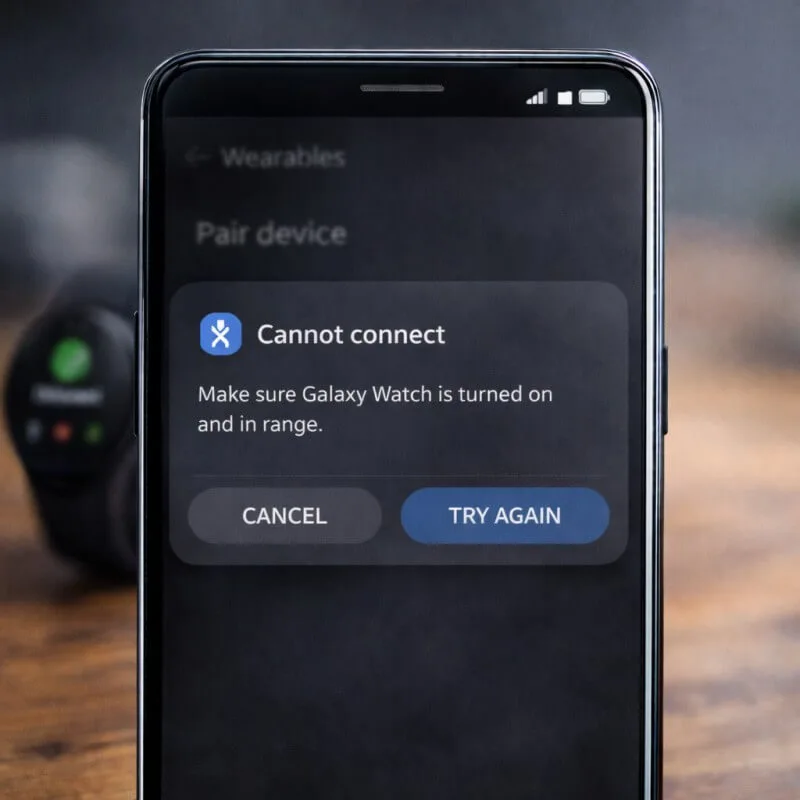
If the issue still continues, you can follow Google’s official Bluetooth troubleshooting guide for Android devices.
3. App Crashing Issue
App crashing or freezing while opening is a common problem.
- Uninstall the app and reinstall it.
- Clear the app cache (Settings → Apps → Clear Cache in Android).
- Check for mobile OS update – compatibility issues can occur if the system version is old.
- Close background apps – to avoid memory overload.
If the problem persists, factory reset the smartwatch and start the pairing process again from the beginning.
These troubleshooting steps often solve how to connect smart watch with mobile related issues immediately.
Final Thoughts
Connecting a smartwatch to a mobile is a simple process, it is important to follow the right steps. In this guide, we have seen how to connect smart watch with mobile, how to connect smart watch with mobile app and how to connect smart watch with mobile bluetooth in detail.
If you use the official app method, you will get full features, better syncing and smooth performance. If you face any problem during pairing, follow the troubleshooting section. After proper setup, your smartwatch will make your daily life more smart and convenient.
Frequently Asked Questions (FAQ)
1. Can I connect smartwatch without app?
Yes, some basic or budget smartwatches support direct Bluetooth pairing. You can pair by selecting the watch from your mobile’s Bluetooth settings. However, this method does not provide advanced features like call notifications, full data sync, health tracking history, and firmware updates. For complete functionality, using the official mobile app is a safer and more appropriate option.
2. Why is my smartwatch not pairing?
If your smartwatch is not pairing, there could be several reasons. Bluetooth being OFF, app being outdated, low battery, or device compatibility issue are common reasons. Restart both devices, refresh Bluetooth, and check for an official app update. If necessary, reset your smartwatch and start the pairing process again.
3. How long does pairing take?
The smartwatch pairing process usually takes 1 to 3 minutes. The time depends on your internet speed, device compatibility, and Bluetooth stability. First-time setup may take a little longer as data sync and basic configuration are completed.
4. Is internet required to connect smartwatch?
Internet is required for initial setup and app installation. Internet is especially required for account creation, firmware updates, and first-time sync. However, for daily usage, a Bluetooth connection is sufficient for calls, notifications, and fitness tracking.

Hi, I’m Abhijeet Bendale — founder of OfferDukan.com.
I am sharing informative lifestyle guides, smart buying tips, and honest product research across Beauty, Tech, Health, Travel, and more. My aim is to help readers find genuine offers, smart shopping tips, and useful product insights that make daily life easier and more affordable.
Thank you for supporting OfferDukan.com!